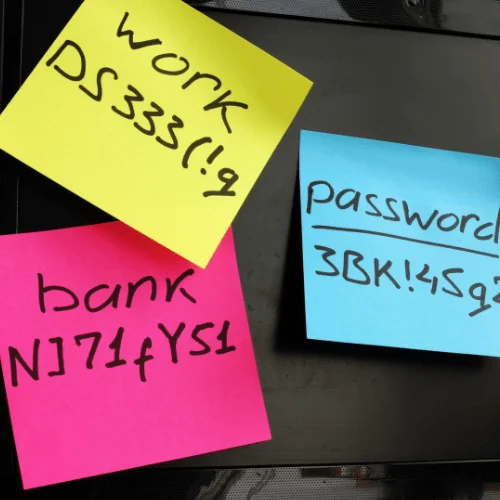
If you own a MacBook, iPhone, or iPad, chances are you trust iCloud Keychain with your passwords and other sensitive information. After turning iCloud Keychain on, when you log into a website, the password manager asks whether you wish to save those details. If you do so, you don’t have to type them again next time. Read our complete FAQ on how to see passwords in iCloud Keychain.
Using a password manager like iCloud Keychain can secure your information, save time, and free up space in your brain. It suggests strong passwords, autofills them, and updates them on all your authorized devices. Additionally, it stores usernames, passwords, and credit card details. Furthermore, keeping your credentials safe and handy is convenient, as the software is integrated into the iOS system; there’s no application to install. You may even be unknowingly using it already.
But not everyone exclusively uses Apple products. For example, you may use Safari on your iPhone and Google Chrome on your computer. In this case, you can still manage your usernames and passwords on both devices using iCloud Keychain for Windows. Read our complete FAQ on how to access iCloud Keychain on Windows.
Over the last few years Apple has been expanding its iCloud service to include a convenient feature called iCloud Keychain, which stores the Safari user’s account name and passwords, credit card information and Wi-Fi network passwords across all trusted devices running iOS 7.0.3 or later or macOS 10.9 Mavericks or later. It ensures Mail accounts, contacts, calendar details, and messages are all up-to-date across all devices.
However, as the number of cyber attacks grows day by day, Apple users are obviously questioning the security of iCloud Keychain, especially in the light of recent reports that iCloud had been hacked.
Just as with password managers, it’s important to understand the security measures Apple has taken to protect your data. Let’s take a look at a short technical background of the service and its overall security.
Due to Apple’s commitment to privacy and security, the data stored in iCloud Keychain remains protected even if the user’s iCloud account has been compromised. This is true even if iCloud is compromised by an external attack or a third party accesses user accounts.
Not even Apple can read your data, which is something that the company has openly claimed in its annual iOS Security whitepaper. iCloud Keychain uses a 256-bit AES encryption to store and transmit passwords and credit card information. It also uses elliptic curve asymmetric cryptography and key wrapping, explained below.
When a user enables iCloud Keychain for the first time, the device establishes a circle of trust and creates a syncing identity for itself. The syncing identity contains the public key that must be signed twice by two additional keys to be validated: the private key (the asymmetric half of the syncing identity), and an asymmetric elliptical key that is derived from your Apple ID password. The circle of trust also contains the parameters used to create the key based on the Apple ID password. This syncing circle is then placed in the cloud where all authorized devices are able to reach it.
When you set up iCloud Keychain on a new device, the previous device that originally created the circle of trust and syncing identity will receive a notification requesting approval for this new access. If you have two-factor authentication enabled, you will be able to activate iCloud Keychain without authorization from the original device.
As soon as the additional device is approved, iCloud Keychain automatically begins updating on that device. Here is what happens from a technical standpoint: the new device notices the syncing circle in iCloud, and that it isn’t yet connected to it. To participate within this circle, the new device then creates a syncing identity key pair, followed by an application ticket to the circle.
This ticket will contain the public key for its syncing identity and is signed by a key that is generated from the Apple ID password, at which point the user verifies and approves the ticket on the initial device. As a result, the first device adds the public key of the new member to the syncing circle of trust and places it in iCloud. Finally, both members of the circle sign in and start exchanging data, with priority given to the device that was modified later.
When comparing 1Password, LastPass, or Sticky Password with iCloud keychain we can say that, in terms of security – since both Apple and password management developers have applied a variety of layers of security to protect your data – it would be hard to choose a winner.
But there is another aspect that’s important to consider: ease of use. That’s where password managers step into the picture, since they deliver cross-platform services and protect your data by encrypting it. If you are only using Apple’s services and therefore only need to memorize passwords for these accounts, then iCloud Keychain will be more than enough for you. But if you are using multiple browsers and operating systems, then having all your passwords to hand is possible only with a password manager.
One of the most convenient features of macOS is iCloud Keychain, a service that keeps your Safari website usernames and saved passwords, credit card information, and Wi-Fi passwords up-to-date across all devices associated with the same Apple ID if it is running either OS X 10.9 Mavericks and later, or iOS 7.0.3 and later.
After it is activated, any data stored locally on your computer or iOS device is automatically transferred onto the cloud and the servers that Apple uses to store your data, after which it is then exchanged with all authorized devices.
Hence, you’ll always have an up-to-date database of passwords across all the devices that you own. iCloud Keychain is protected by 256-bit AES encryption to store and transmit passwords and credit card information, and also uses elliptic curve asymmetric cryptography and key wrapping – a method of security that ensures all data synced between devices is kept safe.
Before iCloud Keychain there was (and still is) Keychain Access, macOS’s built-in password manager. To avid Mac users, Keychain Access was usually the app that was storing all their online, email or network server passwords, as well as other password-protected items. All passwords stored locally in your keychain were protected by the user login password: if you didn’t have one, that meant the data was unprotected.
As Keychain Access stores your data locally, the only way to keep your data in sync on all devices using this approach is to enter them manually or transfer them via USB stick or the like, a problem that iCloud Keychain solves. The feature lets you share keychains with your other devices in an instant. All device-specific keychains are created and managed from within the iCloud account; you need only activate it.
Just like other, high-quality password managers, iCloud Keychain mainly focuses on keeping your data in sync, while keeping a backup in the cloud so authorized users can recover it in case anything goes wrong (such as losing a device). Just like password management services, iCloud Keychain stores your data locally on your device and updates across approved devices, but it needs to be set up to work that way.
If we compare Apple’s password manager to third party services, there are a few aspects that put both parties at an advantage, and so the choice depends on the following factors: price, security and ease of use.
iCloud Keychain has the serious benefit of coming directly from Apple and is deeply integrated into macOS and iOS. When it comes to security iCloud Keychain is a robust service, but password managers such as 1Password, LastPass, or Dashlane, on the other hand, provide a much wider reach. Where iCloud Keychains sync is limited to Apple devices, third party services have the advantage of delivering extensions for multiple web browsers and apps for other popular platforms.
But one of the key features that is able to swing the needle one way or the other is ease of use. A password manager system has to be easily accessible for a seamless consumer experience. If not, you may not use it consistently, so it will fail to deliver on its purpose.
iCloud Keychain is great for remembering passwords on web pages and storing those details, and when you visit a website it will automatically display the username and fill the password in for you, at least if you have set it up in Safari Preferences.
The experience is great on both Mac and iOS, although on the latter it is a nightmare to get access to your passwords. Also, if you are looking to access non-web logins, iCloud Keychain becomes useless.
That’s when third party apps step into the picture and fill the gap that Apple isn’t able to with iCloud Keychain, with seamless sync, cross-platform availability and encryption to protect user data. So, if you are looking for a way to sync not just your passwords and credit cards, but app logins, identities, banking credentials, and much more across all your devices, a third party password manager is the right choice. If your password management needs are only related to the web, then iCloud Keychain is more than sufficient.
Apple’s built-in password manager, iCloud Keychain, is the perfect tool to store login credentials, Wi-Fi passwords, and personal information. The software also comes with various handy features, including syncing, end-to-end encryption, and autofill, just to name a few. The best part is that, since it’s integrated with iOS, it conveniently stores your information and makes it readily accessible whenever necessary, without any input from third-party software. To set up iCloud Keychain on an iPhone, you need to:
Once iCloud Keychain is activated, the system suggests a complex password whenever you sign in to a new website or app and automatically saves it. There’s also the option of viewing all stored passwords at once. In settings, users can access all login credentials in alphabetical order and navigate through them using the handy search box. When selecting a specific credential for a site, it’s possible to edit usernames and passwords and add notes. The same tab shows account options, where it’s possible to set up a verification code if the platform offers two-factor authentication. Still in account options, there’s a convenient button that takes users directly to the website to quickly update their password. It’s also recommended to go to into the security recommendation tab to enable the option ‘Detect Compromised Passwords’, which allows iPhone to securely monitor your passwords and alert you if they appear in known data leaks.
To have the system automatically fill logins whenever required, Autofill Passwords in Password Options needs to be enabled. Unfortunately, there’s no way to automatically import logins from another password manager to iCloud Keychain using an iPhone. However, you can add passwords manually by clicking on the plus sign in the top right corner.







The Best Reviews team researches and tests all products first-hand. We've been reviewing products and services since 2012 and are proud to only publish human-created content.
Share your thoughts, ask questions, and connect with other users. Your feedback helps our community make better decisions.
©2012-2026 Best Reviews, a clovio brand –
All rights
reserved